PROVIA IFRAME QUICK START GUIDE
Display ProVia content on your website!
The ProVia dealer iFrame provides an easy way for dealers to incorporate ProVia content on their website with data that will always be up-to-date. iFrames are provided for each ProVia product line. For dealers selling multiple ProVia products, it may be useful to add navigational links in your nav bar or a separate index page listing all the ProVia products you sell, with individual pages for each product iFrame.
Here’s how to add the ProVia iFrame to your site. We also created a short video tutorial walking you through this process.
STEP 1
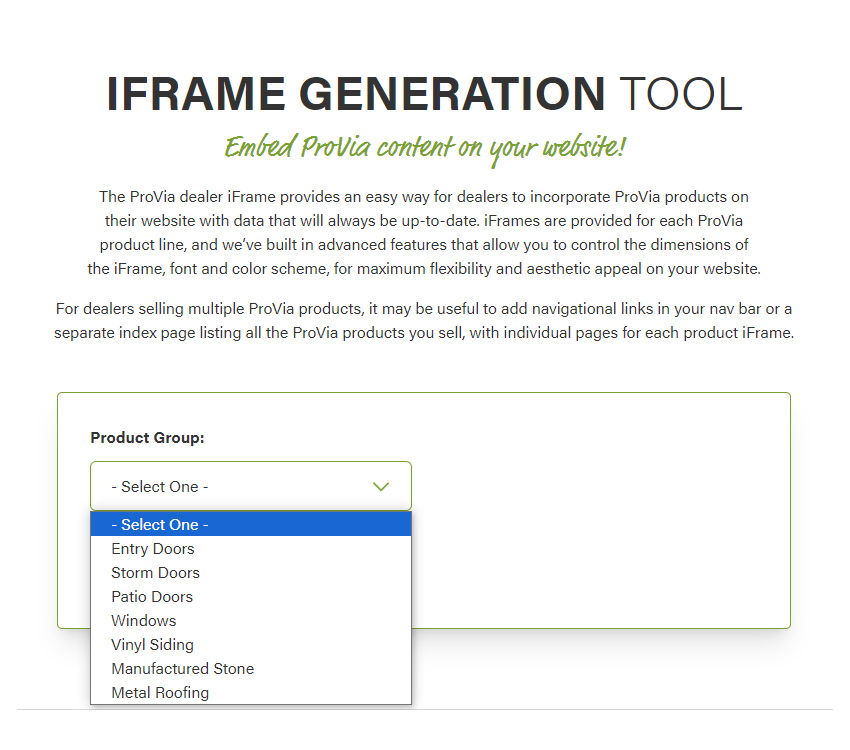
Select the main product group category from the PRODUCT GROUP dropdown list. You will need to generate a separate iFrame code for each product group you wish to display on your site.
STEP 2
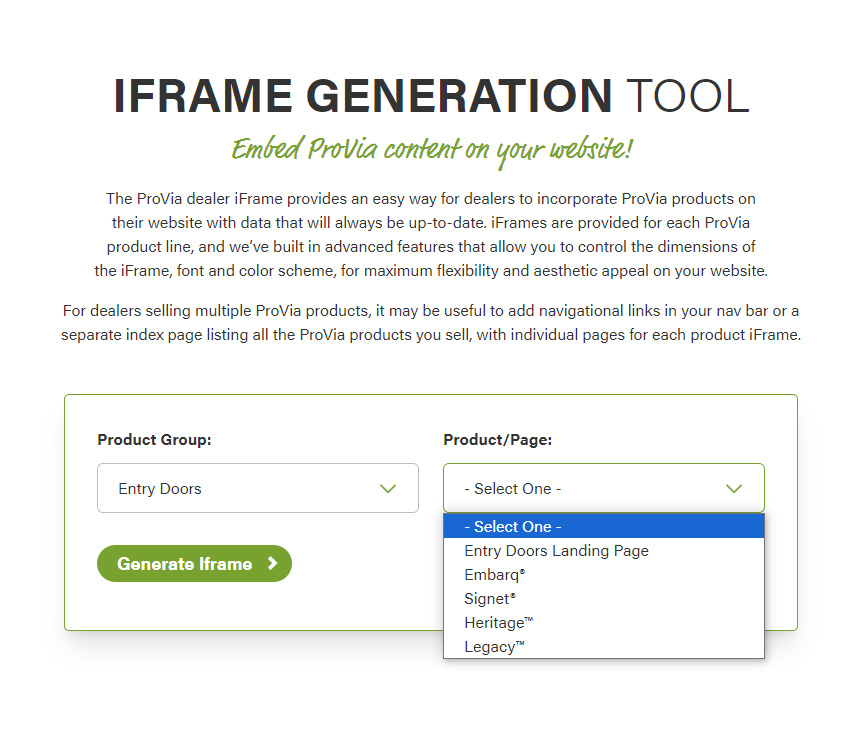
Then select the sub product from the PRODUCT dropdown list.
STEP 3
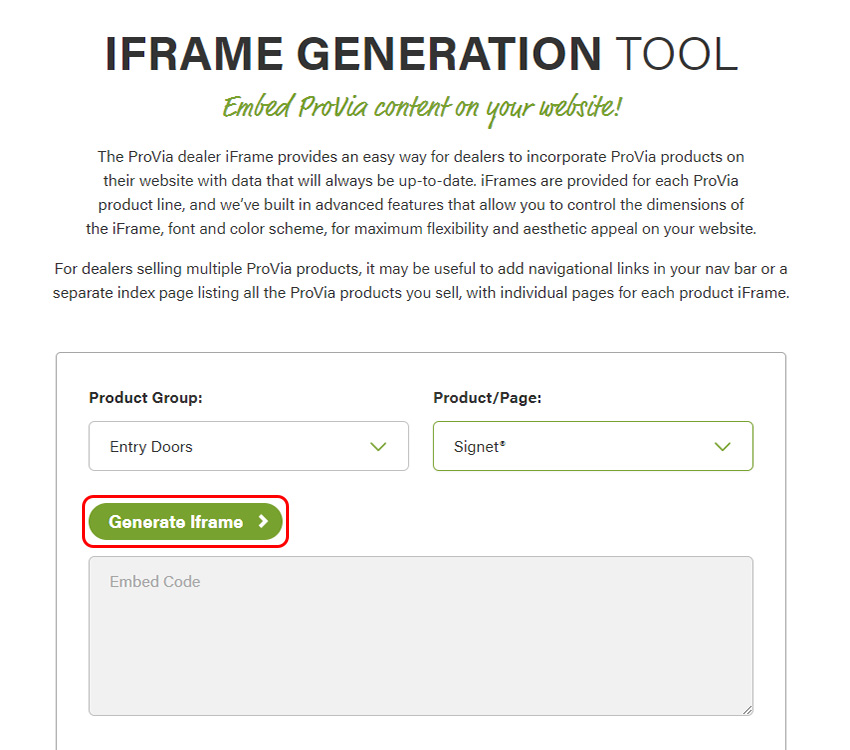
Click the “Generate iFrame” button. A preview of the ProVia iFrame will appear at the bottom of the screen. This is how the iFrame will look on your website.
STEP 4
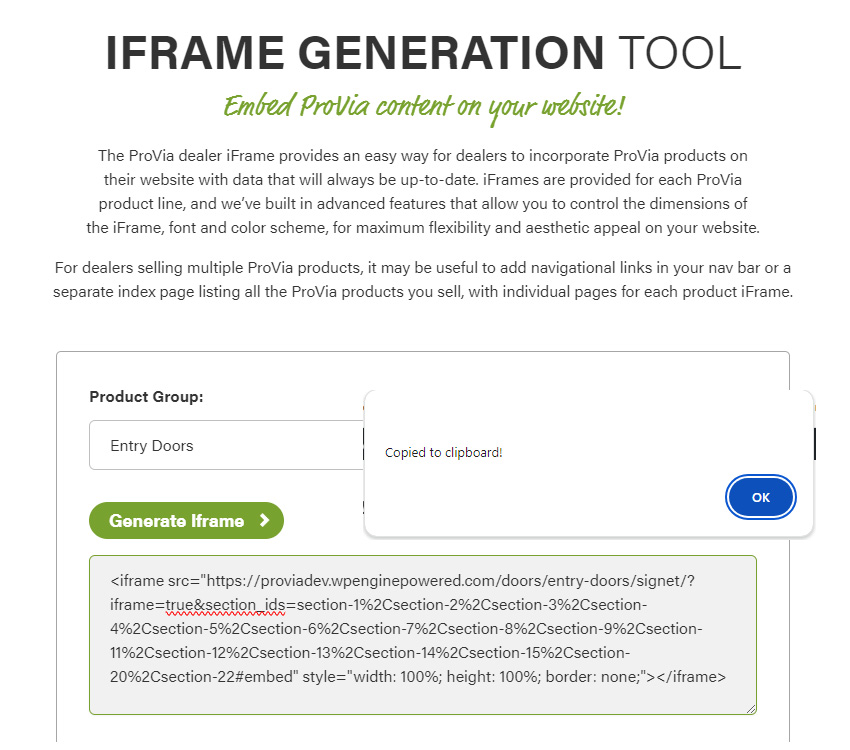
Copy the iFrame Code and paste it into the source code on the page of your website on which you wish it to display. Repeat the process for each product line you wish to display on your website.
IFRAME HELP REQUEST
Contact us if you need help with your ProVia iFrames
"*" indicates required fields